
Digital Banking
Receive access to helpful money management tools.
Your enhanced Digital Banking experience is ready for you!
Easy and secure access with Touch ID, Face ID or 4-digit login passcodes
Deposit your checks anywhere without having to leave home
Connect other external bank accounts to transfer $ to and from accounts
New look and feel makes it easier than ever to pay bills and access any existing payees and payment schedules
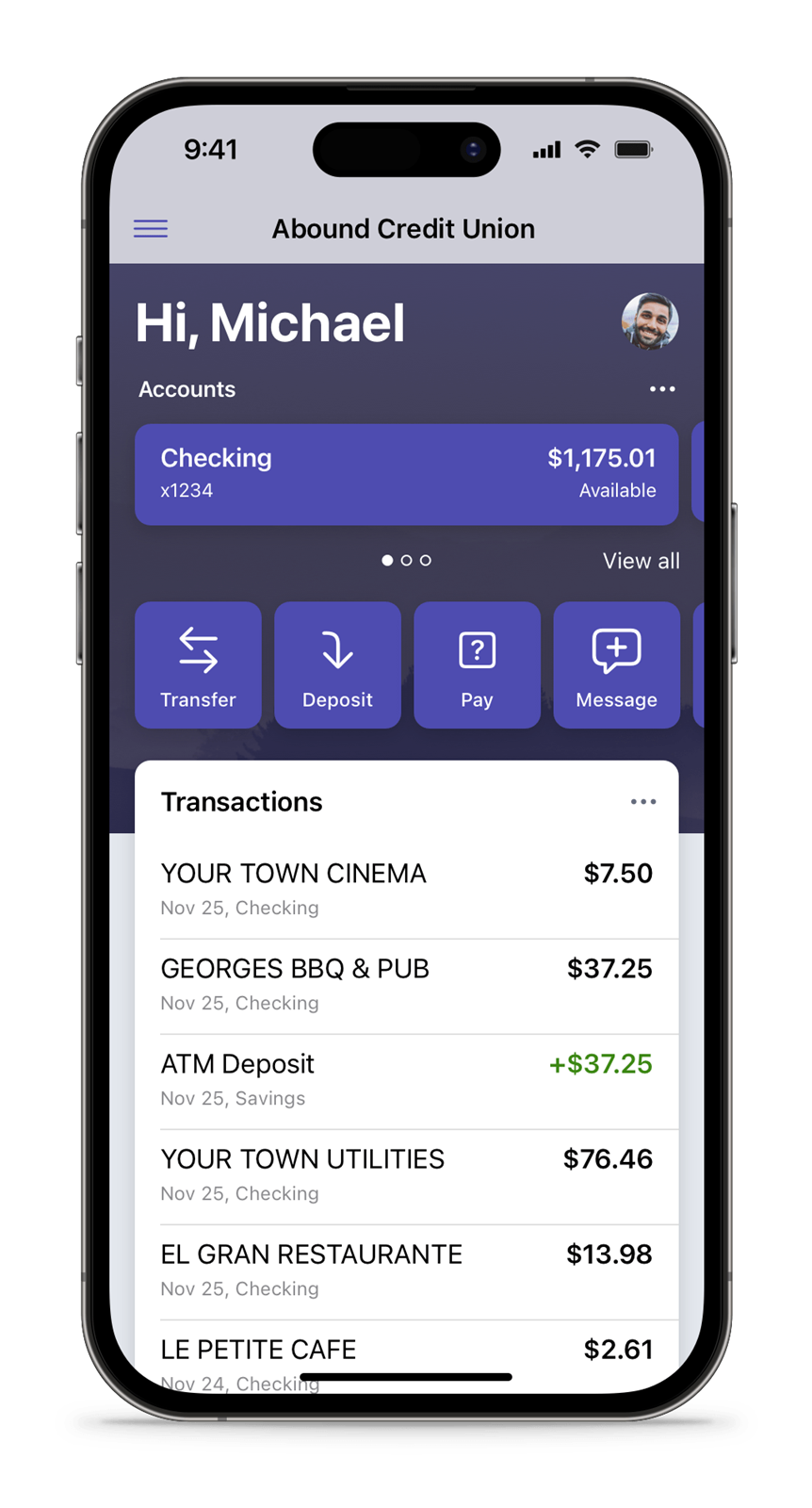
Set up recurring and one-time payments for your Abound loans on any device
Take a sneak peek at the videos below
Manage money at home or on-the-go
Access your accounts morning, noon and night - and on weekends and holidays as well.
Make bill and loan payments electronically, without needing envelopes or postage.
Use your smartphone camera to deposit checks with our mobile app.
Receive email or text alerts that notify you about important account activity.
Your hard-earned funds are right at your fingertips
Log onto your laptop. Or fire up your smartphone. Wherever life takes you today, your Abound accounts are only a few seconds away with Digital Banking. Check balances, transfer funds, review transactions - and do it all safely with our state-of-the-art security measures.
- A free service of Abound Credit Union*
- Tap into your accounts anytime from almost anywhere
- Get up-to-date account balances
- Transfer funds between Abound accounts or to Abound from other financial institutions
- View account history
- Make on-time bill and loan payments
- Timely account history, plus you can opt-in for e-Statements (electronic statements)
- Download the free Abound app from Google Play or the App Store
- Easy and secure access with Touch ID, Face ID or 4-digit login passcodes
- Check balances and transfer funds
- Make easy bill and loan payments
- Deposit checks with your mobile device camera
- Link your Debit or Credit Card to your mobile device for one-tap Digital Wallet payments¹
- Use card controls to lock and unlock your Credit Cards and put limits on card use
Then, you'll need your Abound Member Number, Social Security Number, current cell phone number, and email address to re-enroll.
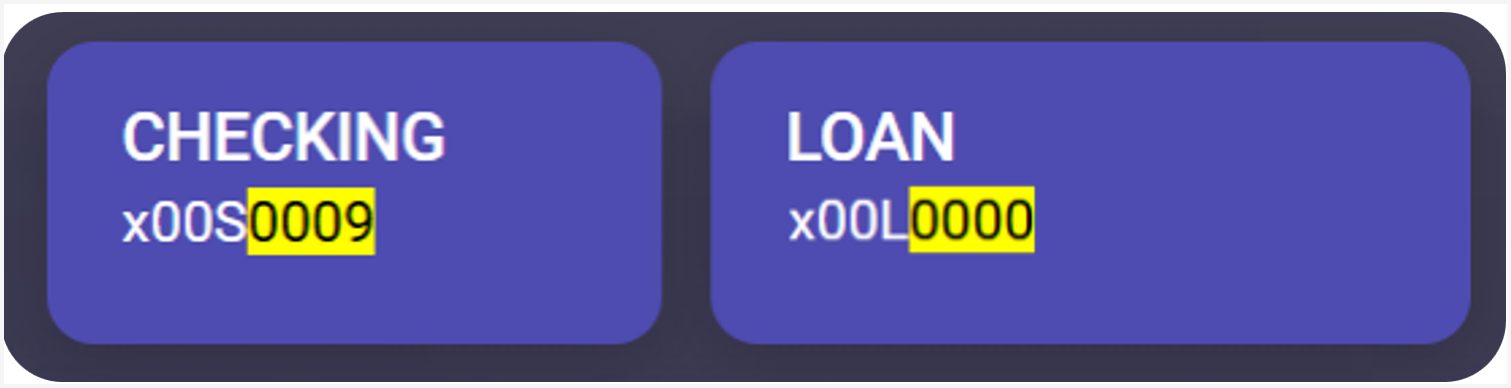
How-To's and Step by Steps:
Our how-to tools & tips help you get things done
2. Choose the account you want to set up alerts for.

3. Click Alert preferences.
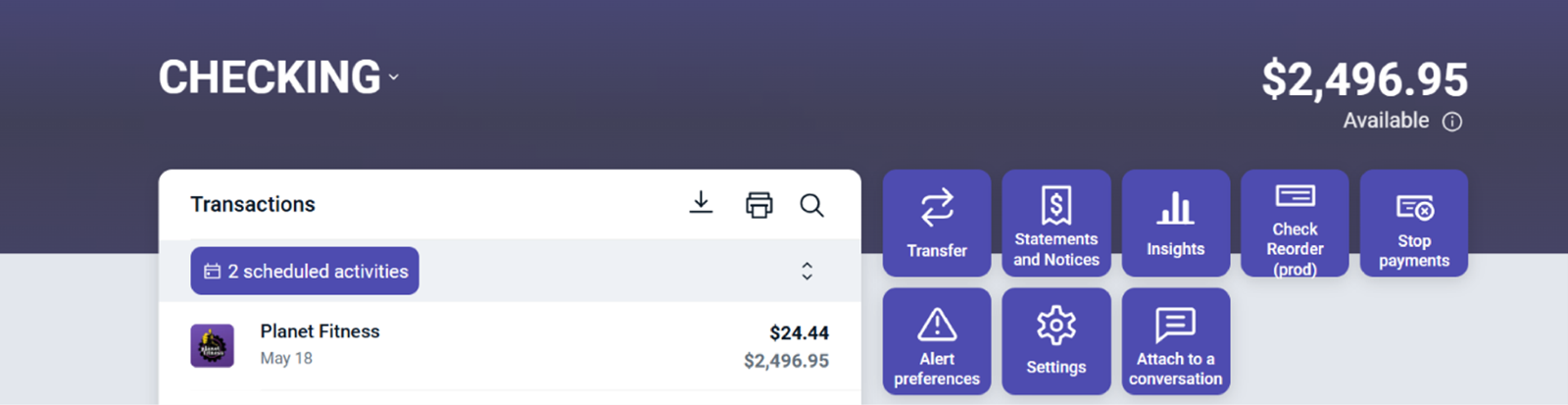
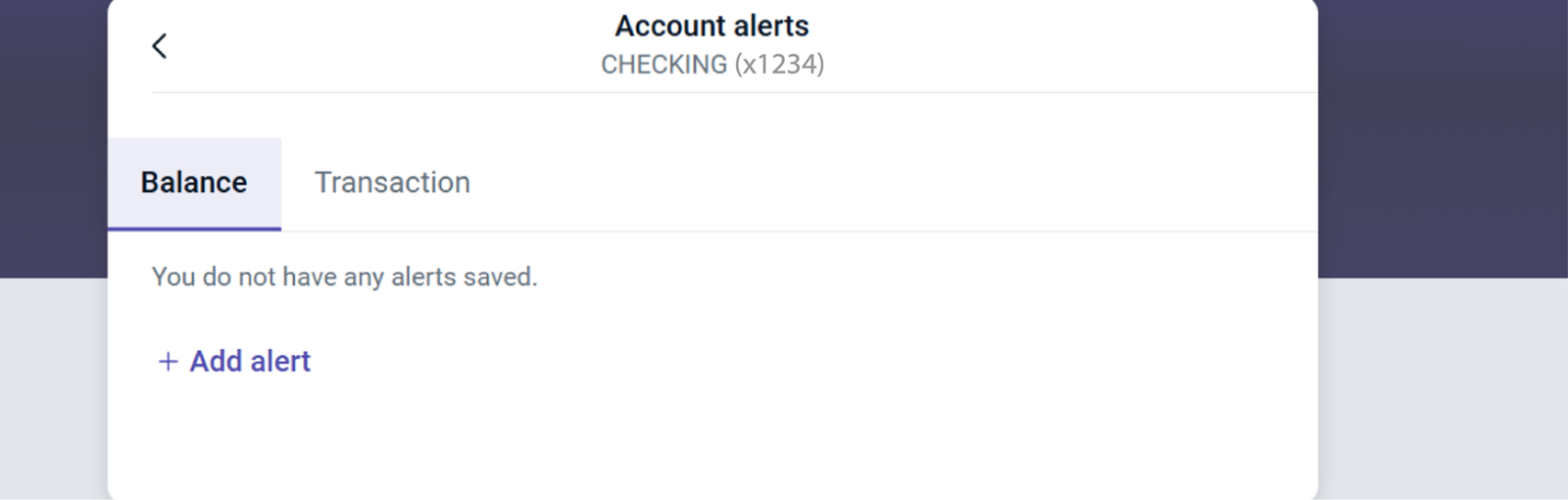
4. Set up alerts for balances, transactions, deposits, and checks.
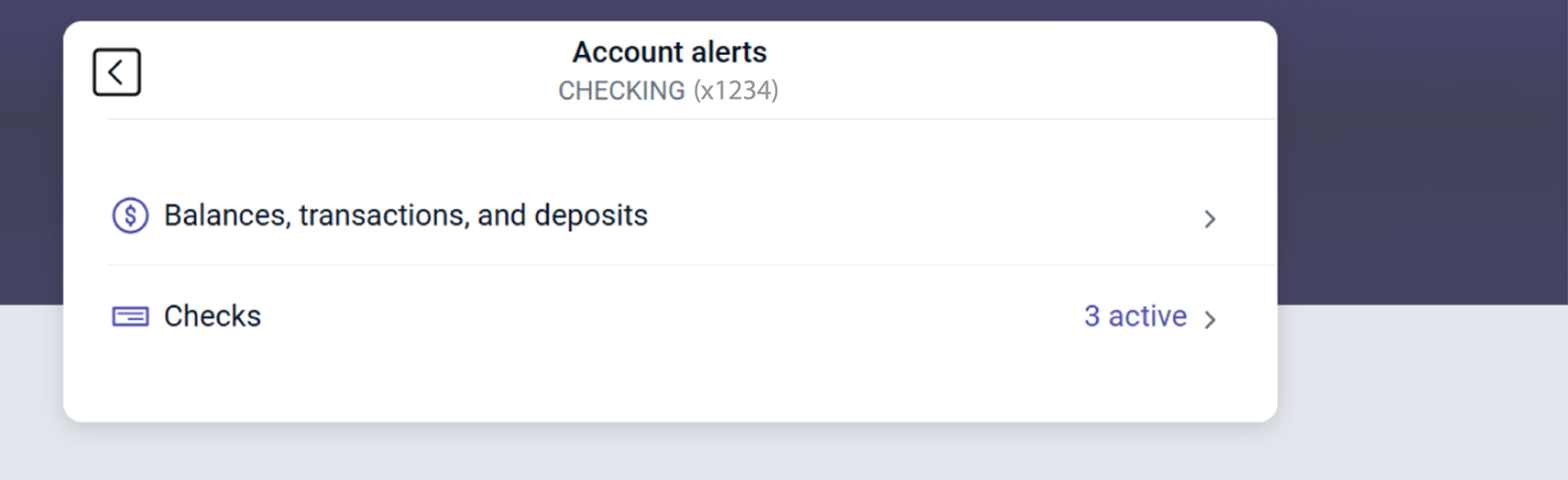
5. For Balances, transactions, and deposits:
- Select Balances, transactions, and deposits.
- Click Add alert.
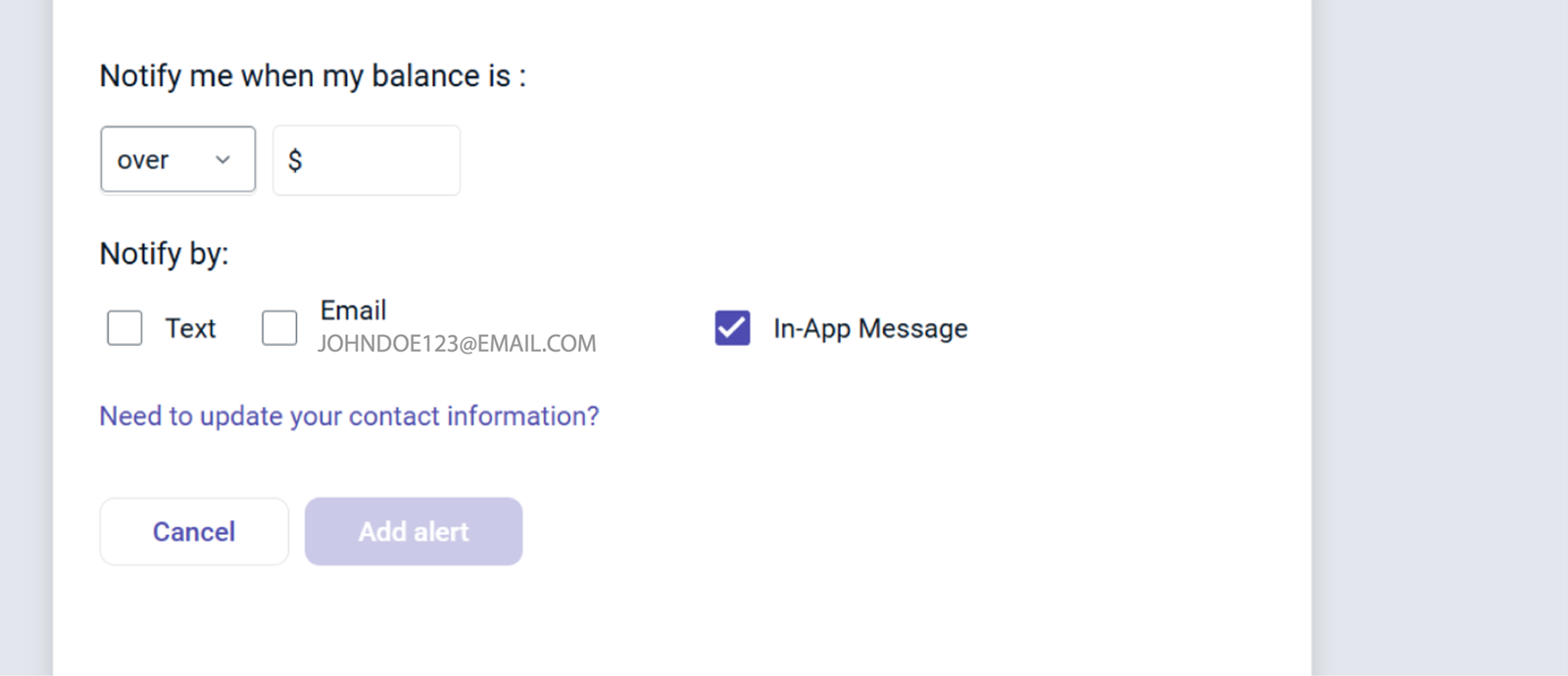
- Choose whether the alert should trigger when the amount is over or under a specific number.
- Select your preferred notification method.
- Click Add Alert to save.
6. For Checks:
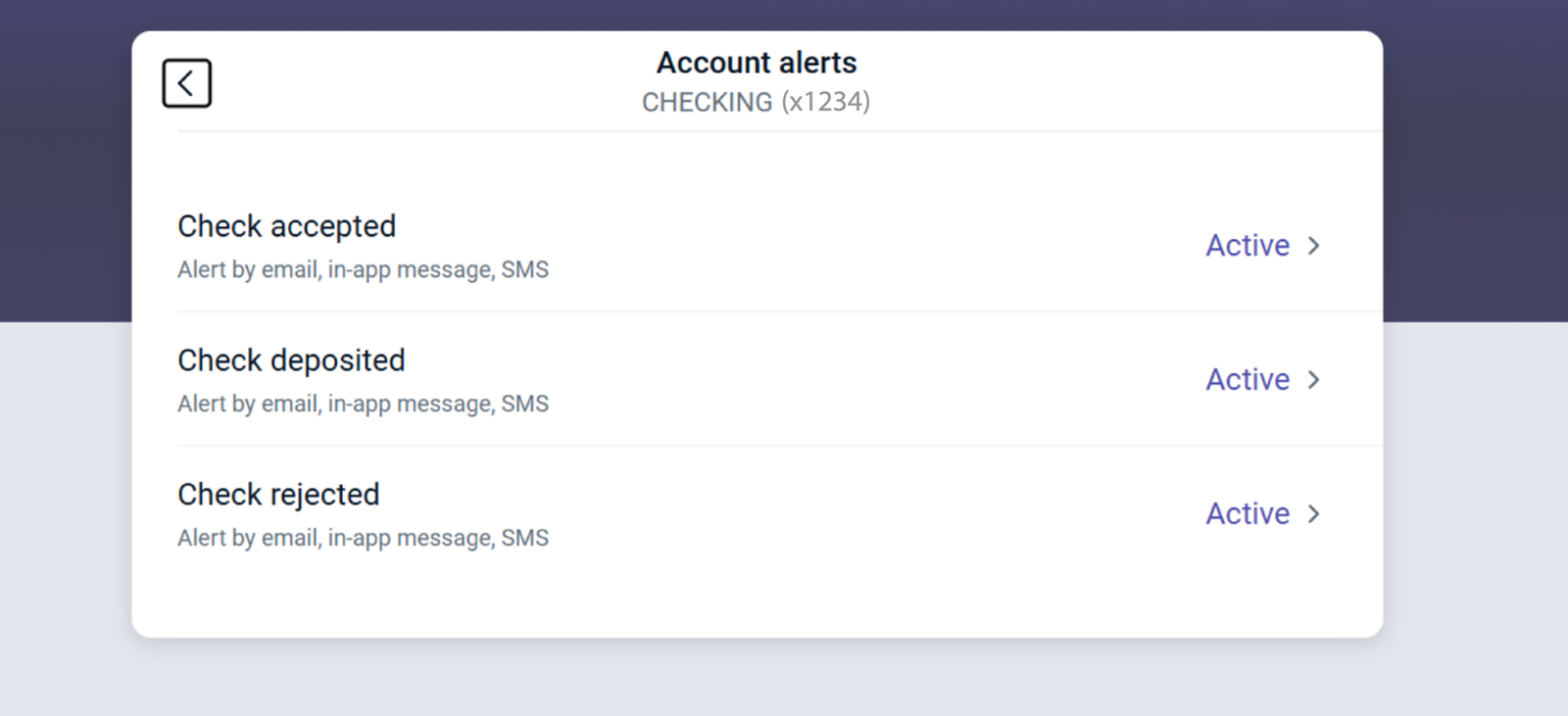
- Select Checks to set up alerts for when a check is accepted, deposited, or rejected.
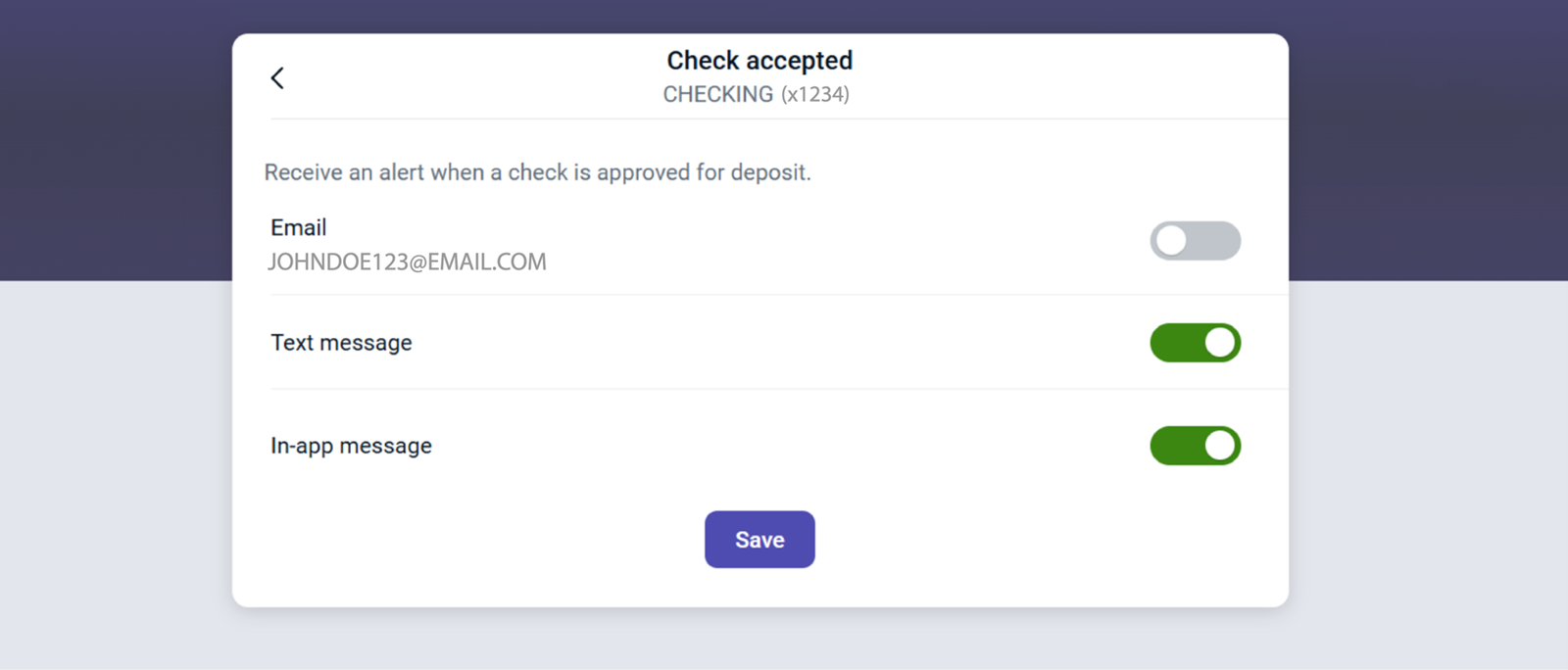
- Toggle the switch to green for your preferred communication methods.
- Click Save to finalize your selections.
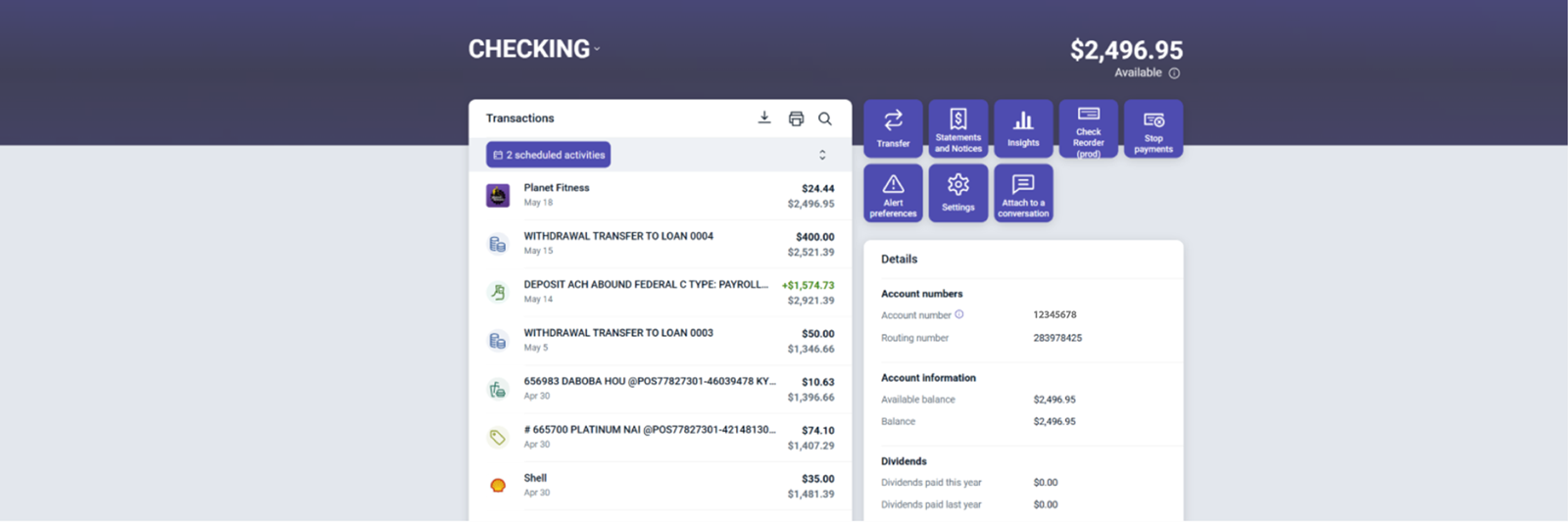
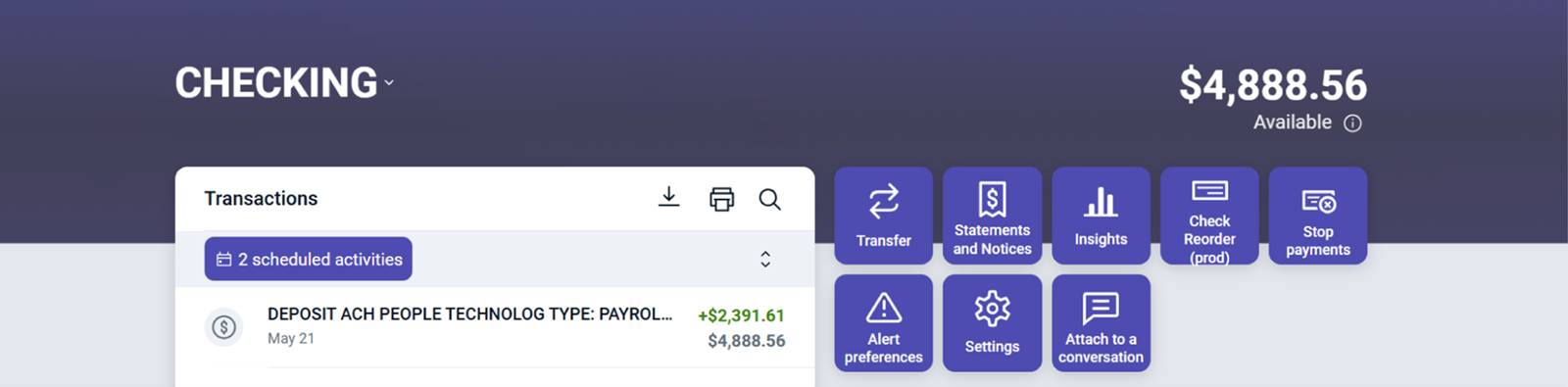
1. Click on an Account to view the Account Details screen.
2. The available balance is displayed in the top right corner.
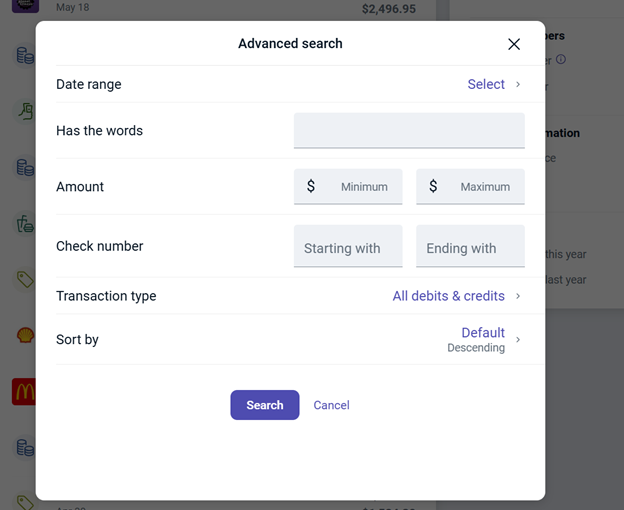
3. Use the search bar to find transactions within the account.
4. Sort transactions by time, type, amount, or check number using the Search and sorting options.
5. Print or download your transactions by selecting the print or download icons.
6. Additional account details are available in the Details box.
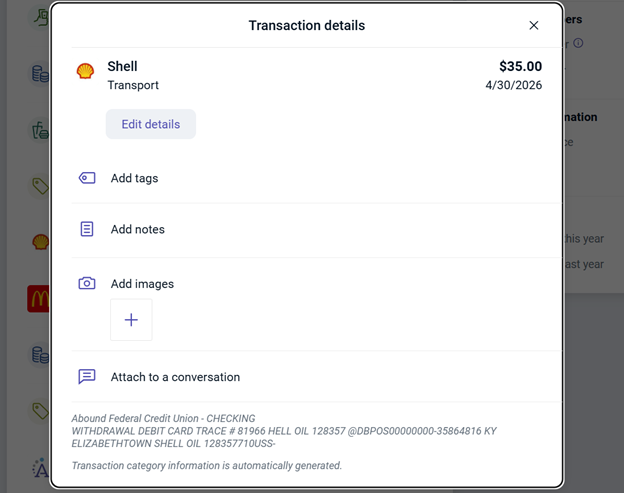
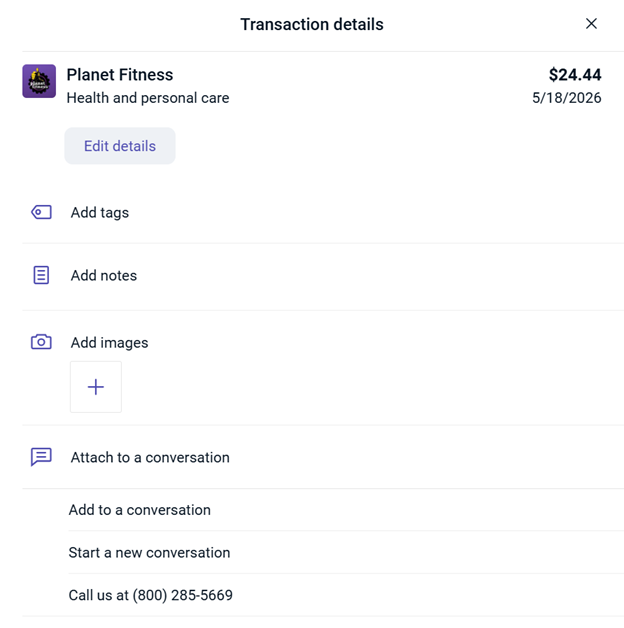
7. After clicking a transaction, you can send a secure message about that transaction by selecting Attach to a conversation.
8. You can view more details, add notes, images, or categorize a transaction by clicking on it.

2. Click Settings.

3. Select the Rename button in the top-right corner.

4. Enter a new account name and click Save.

1. Click on an individual transaction.
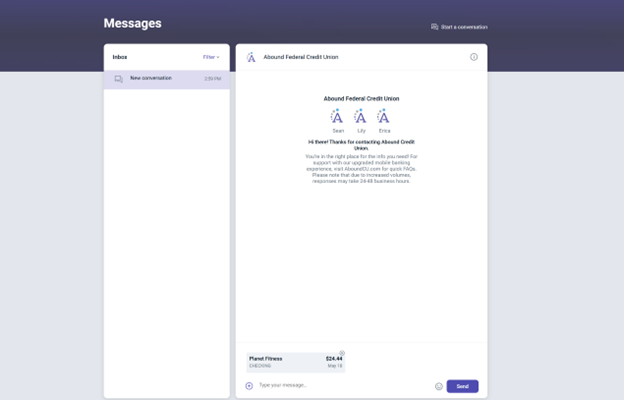
2. Select Attach to a conversation.
3. Choose Start a new conversation.
4. Type in your message.
5. (Optional) Attach a document.
6. Press Send.
For Credit Cards:
1. Select your Credit Card from the Dashboard.

2. Click Card Controls.

3. Select your name and card number.
4. Click the Travel notice button.

5. Fill out the requested information.
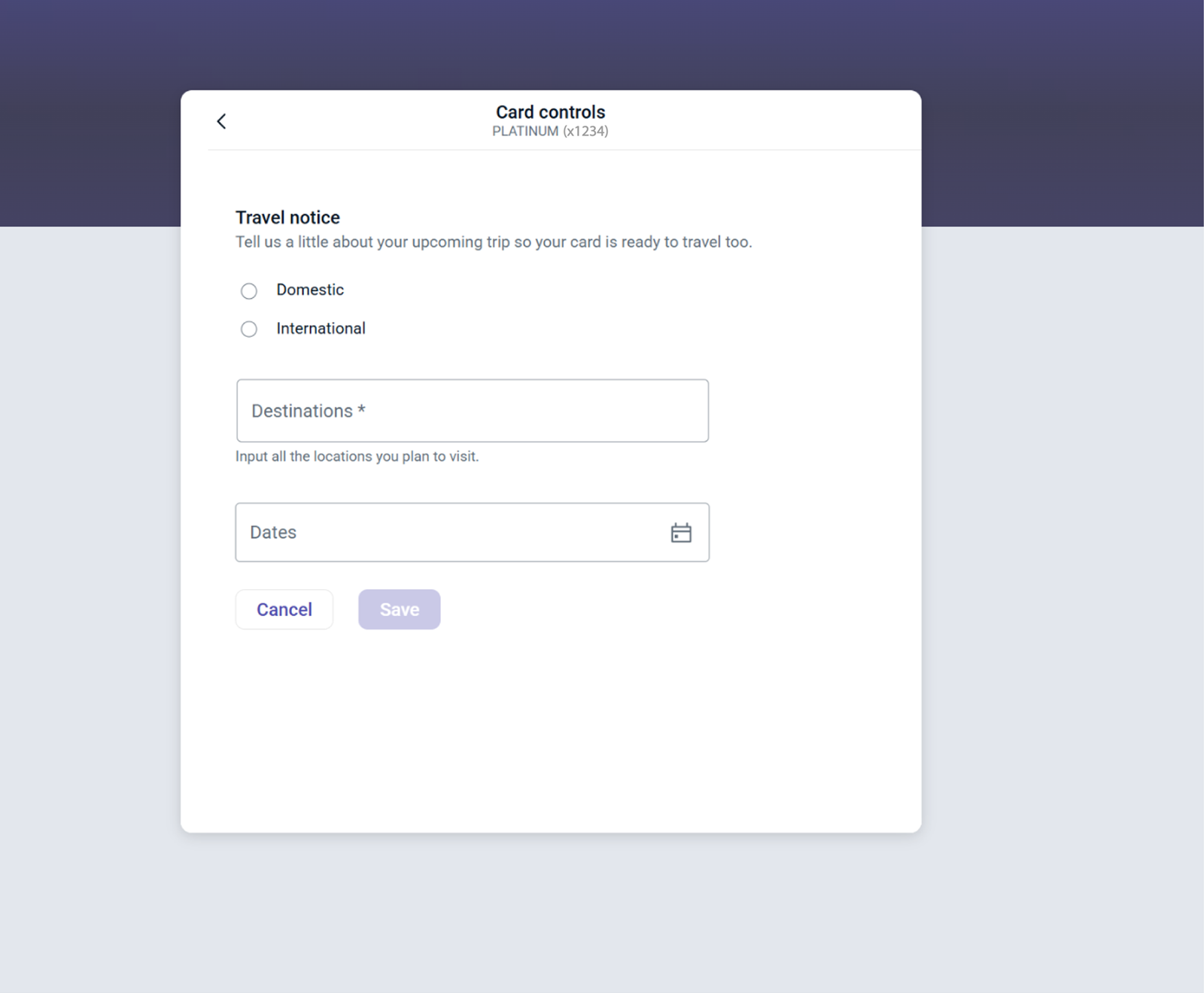
6. Click Save when you are finished.
For Debit Cards:
1. Send us a Secure Message though Digital Banking.
2. Click Messages from the Menu tab.
3. Select Send us a message.
4. Please provide your departure date, return date, and travel destination in the Message.
5. Press Send.

2. Click Card Controls.
3. Select your name and card number.
4. Enable or disable your card with a simple click on the toggle.

5. Here, you can:
- Set up card controls and alerts
- Report a lost or stolen card.
- Order a replacement card.
- Activate your new card.
- Submit a Travel notice.
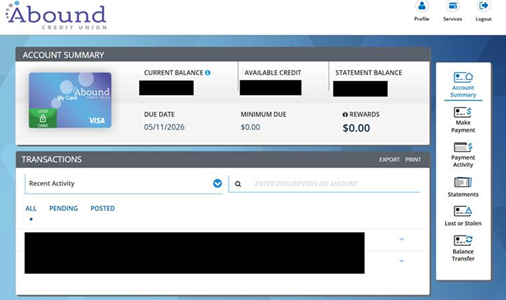
From here, you can:
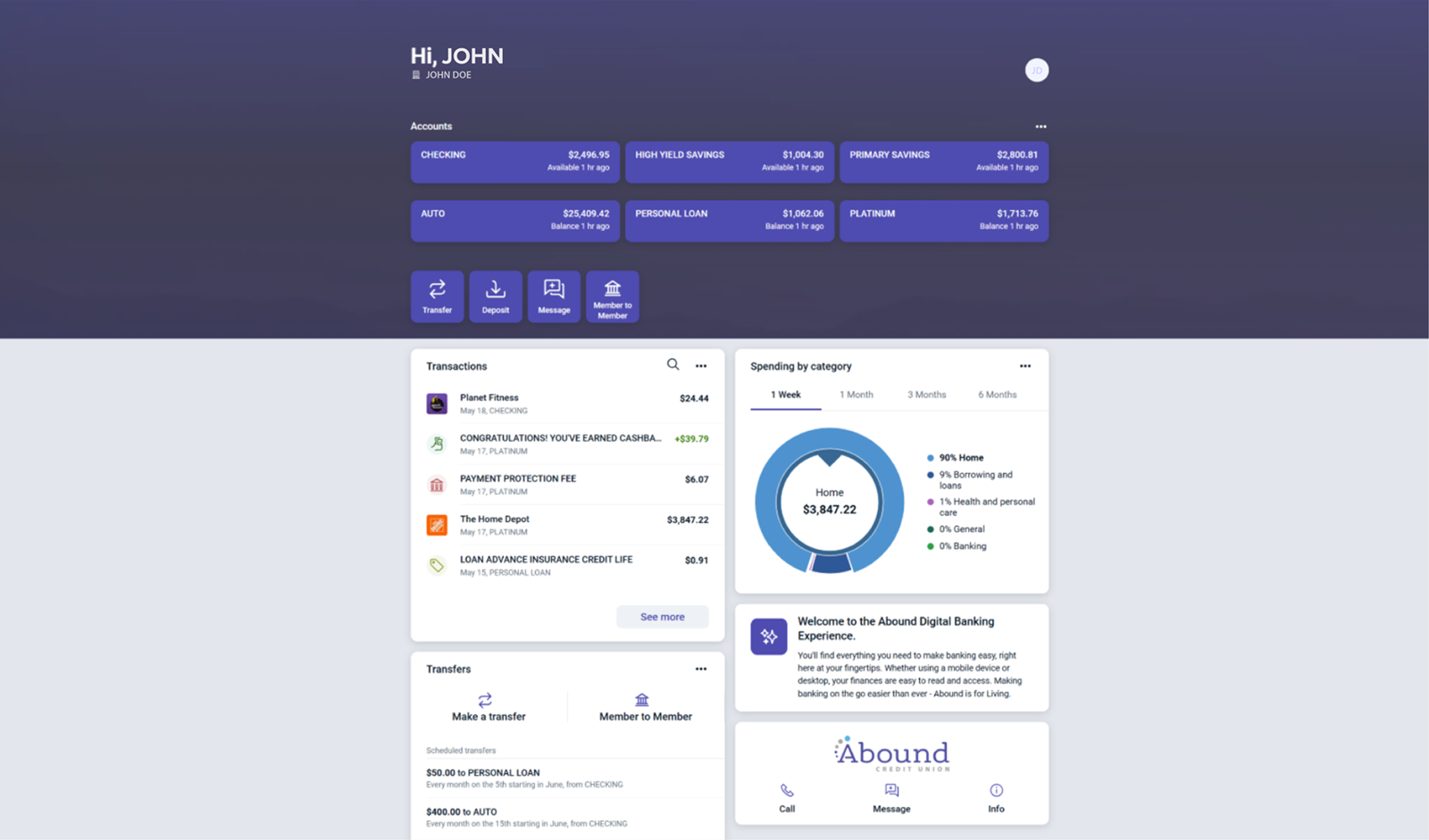
- View your account summary
- Make payments
- View payment activity
- Access statements
- Report lost or stolen cards
- Perform balance transfers
- Lock or unlock your card
Enrollment
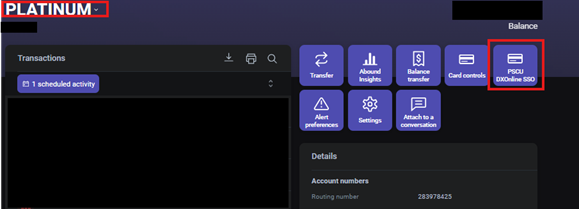
1. Select your Credit Card from the Dashboard.
2. Click the PSCU DXOnline SSO button.
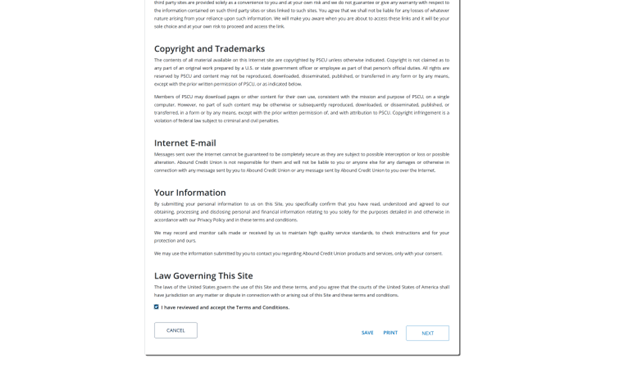
You will then be prompted to:
- Review and accept the Terms and Conditions.
- Select Next to continue.
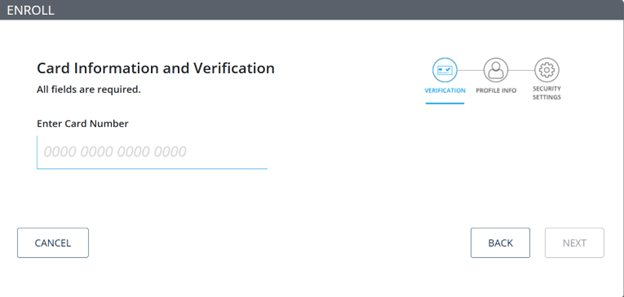
3. Enter your card information and select Next.
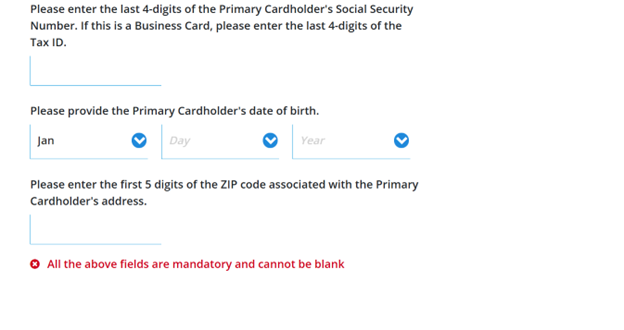
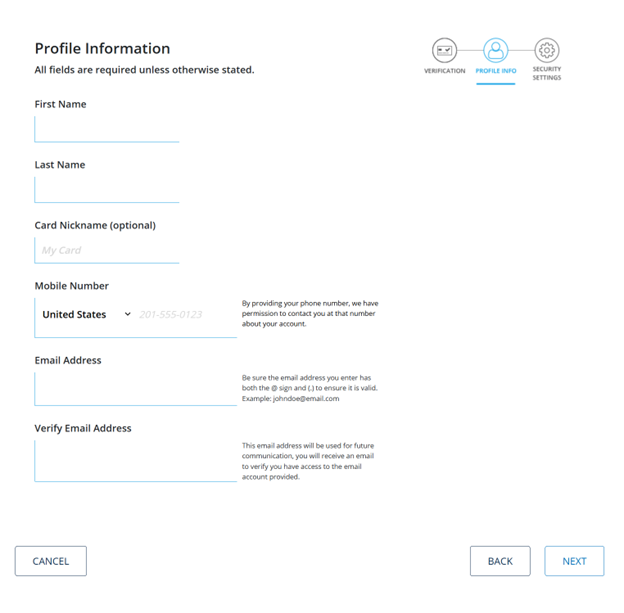
4. Complete your profile by filling in all required details. Select Next.
5. Choose and answer three security questions. Select Submit when finished.
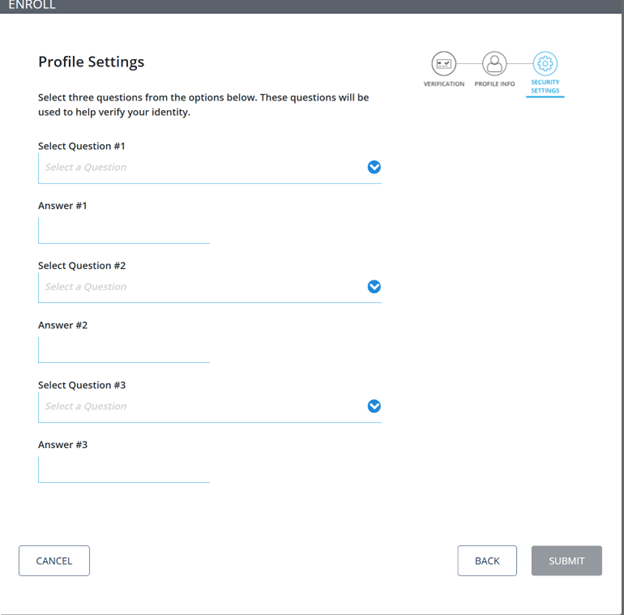
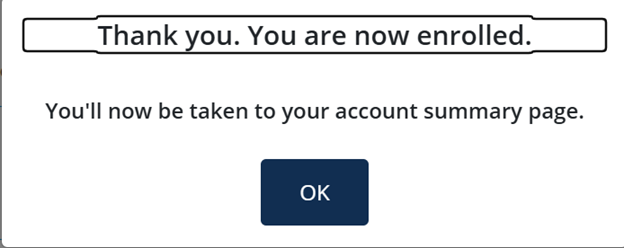
6. Once you submit your answers, a pop-up will confirm your enrollment.
2. Choose the Account you want to deposit your check into.
3. You can choose between your Checking and Savings accounts.
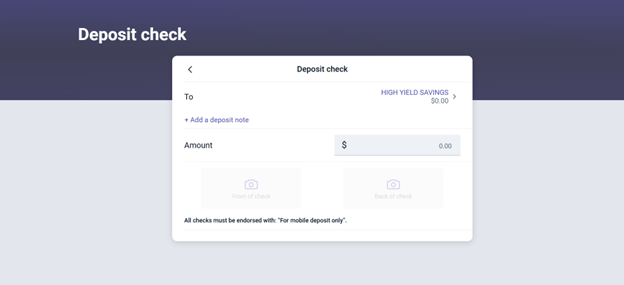
4. The "Amount" should match the Check Amount.
5. Tap the "Front of Check" button to take a photo of the front of your check.
6. Follow the on-screen instructions for taking a photo of the front of your check.
7. Tap the "Back of Check" button to take a photo of the back of your check.
8. Follow the on-screen instructions for taking a photo of the back of your check.
9. Press Done.
Helpful Tips!
- Be sure to write "For Mobile Deposit" on the back of your check below your signature before taking the photo.
- If you make a deposit prior to 3pm ET on a business day, you'll have the money in your account by 4pm ET on the same day once your deposit is approved. Any deposits made after 3pm ET will appear in your account by 4pm ET on the following business day.
1. Choose the account you'd like to reorder checks for.
2. Tap the Check Reorder button.
3. Complete your order on our vendor's website (Quick Order).
4. Complete your order on our vendor's website (View Full Catalog).
One-Time Payment
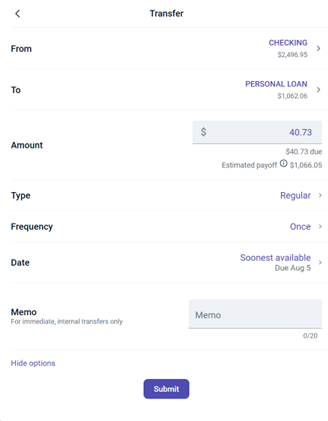
1. Click the Transfers button in the navigation Menu.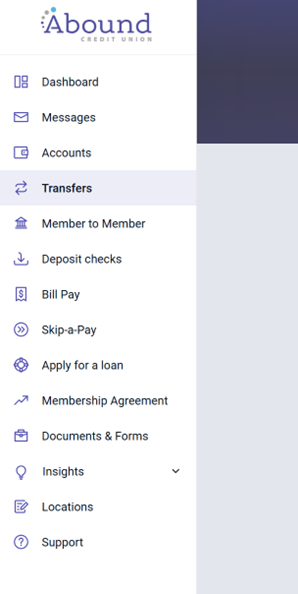
2. If you have scheduled transfers, they'll appear here. Select Make a transfer.
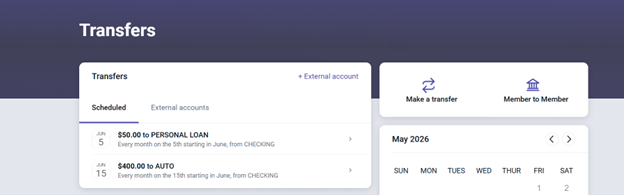
3. Using the "From" and "To" options, select the account the funds will be taken from and the account you wish to transfer to.
4. Enter the transfer Amount.
5. From here, you can:
- Click Submit to finish the transfer.
- Select More options to set it up as a recurring or scheduled transfer.
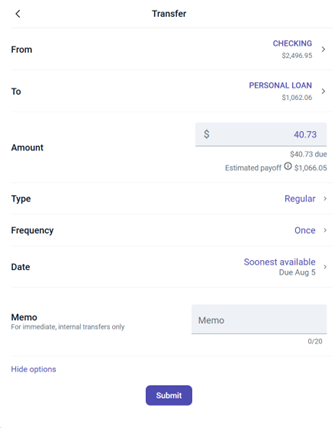
If you would like to set up a recurring transfer, follow the steps below:
6. After selecting More options, click Frequency and choose how often the transfer should occur.
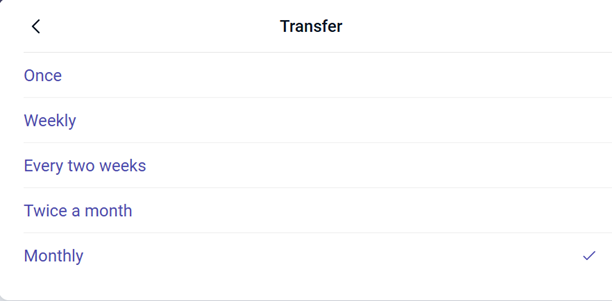
7. Use the calendar to select the start date.
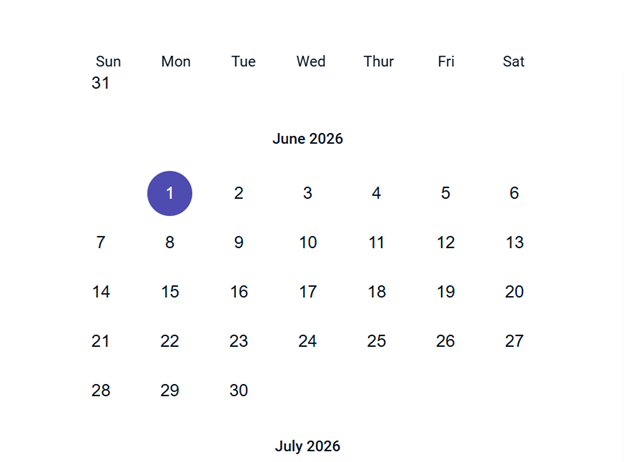
8. Click Submit when finished.
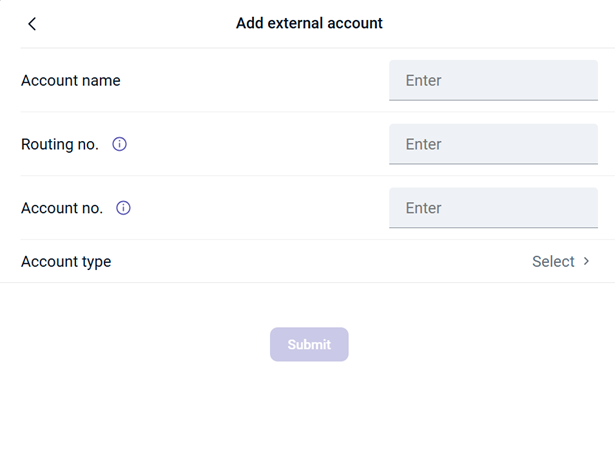
2. Enter the name on the account you want to link.
3. Enter the Routing Number for the external account.
4. Enter the Account Number for the external account.
5. Select the Account Type (Checking or Savings).
6. Click Submit when you are finished.
7. Verify your account: Two small deposits will be sent to your external account. Once they appear (within 1-3 business days), confirm the amounts to complete the verification.
Note: You won't be able to view balances or transactions for the external account. To see this information, you'll need to link the account separately.
Link an account
1. Select Accounts from the navigation Menu.
2. Click Link an account.
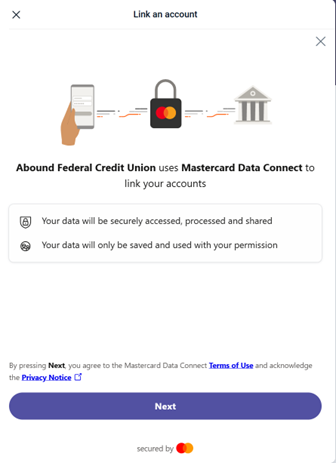
3. A screen will appear stating that your data will only be accessed with your permission. Select Next to continue.
4. Search for the financial institution you want to link.
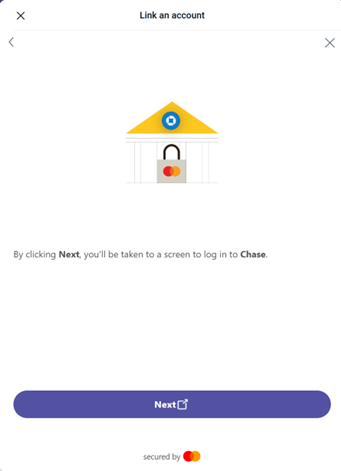
5. After selecting your financial institution, a pop-up will appear prompting you to log in. Click Next to continue.
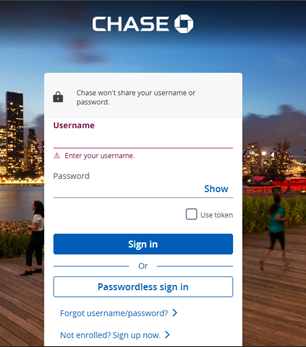
6. Enter your login credentials.
7. You'll be asked to confirm linking this account to your Abound Account. Select Next.
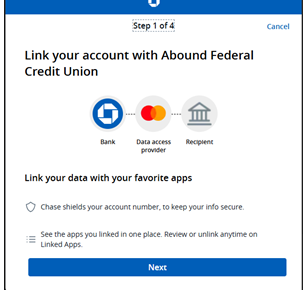
8. A pop-up will display the information the external account will share with Abound.
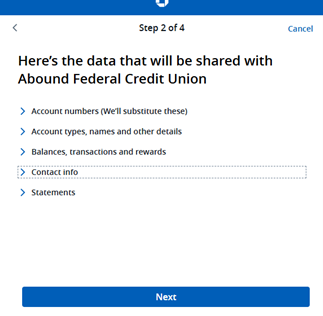
9. After selecting Next, choose the accounts you'd like to link.
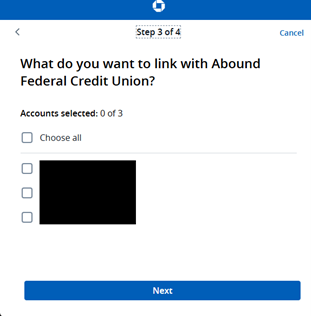
10. Confirm the data to be shared. If everything is correct, click Authorize to finalize the linking.
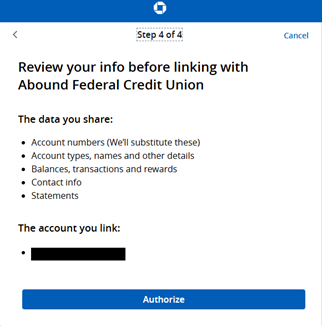
The external account will now appear in your Dashboard.
1. Select your Checking Account from the Dashboard.
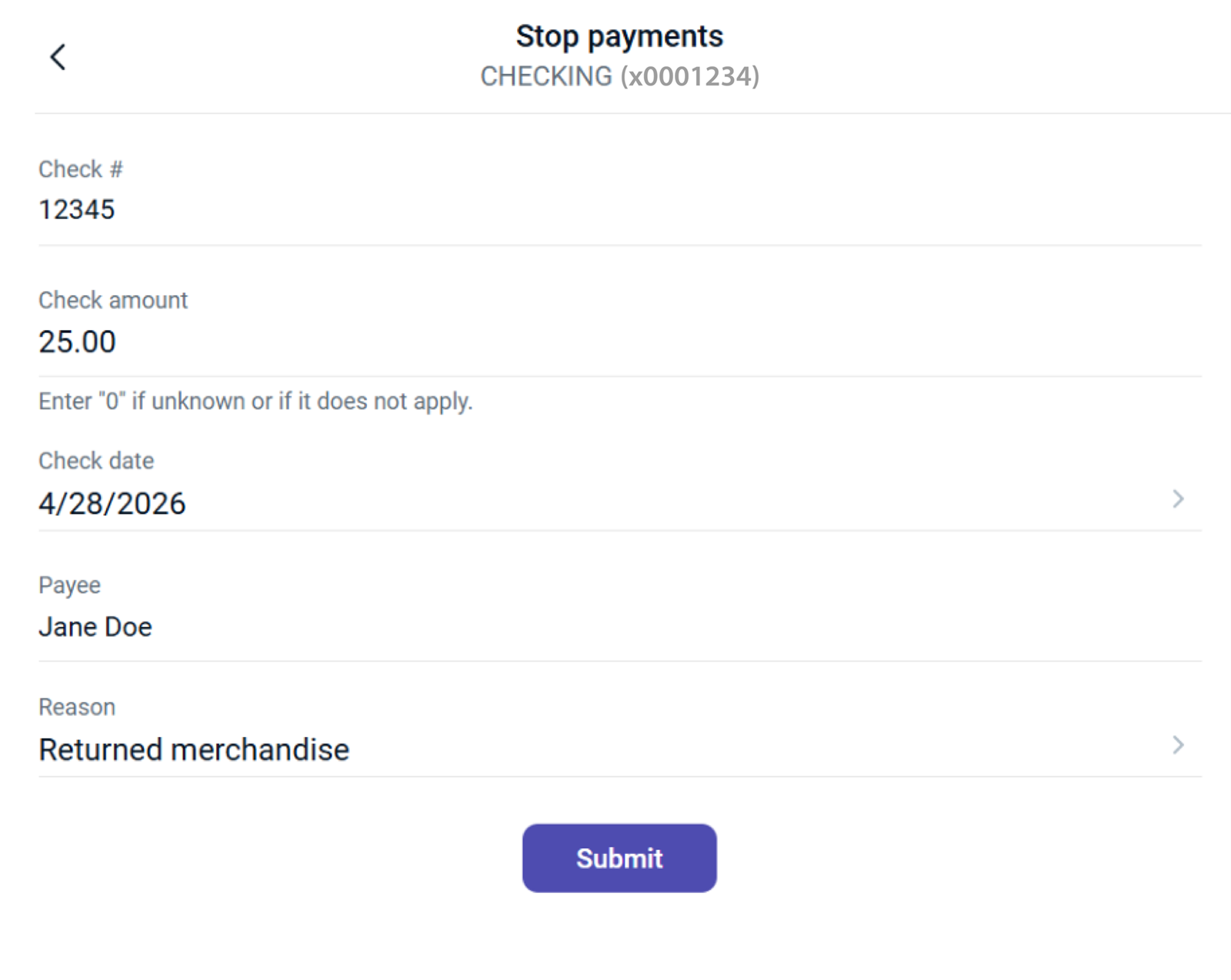
2. Click the Stop Payments button.
3. Choose to stop a single check or multiple checks.
4. Enter the following details:
- Check number
- Check amount
- Check date
- Payee name
6. Click Submit when finished.
Enrolling in Bill Pay
1. Select Bill Pay from the navigation Menu.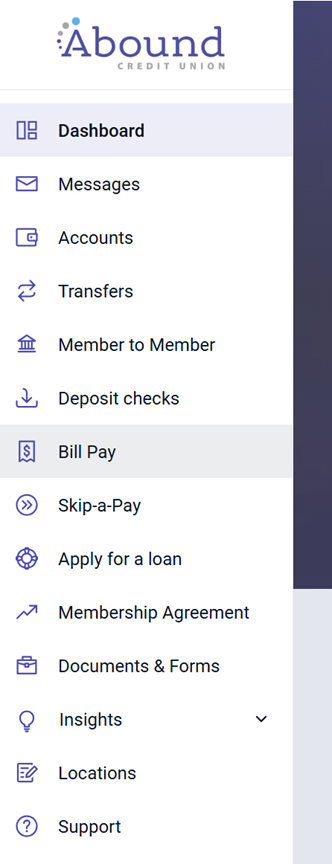
2. First time users must Accept the Bill Pay Terms and Conditions and Privacy Policy.
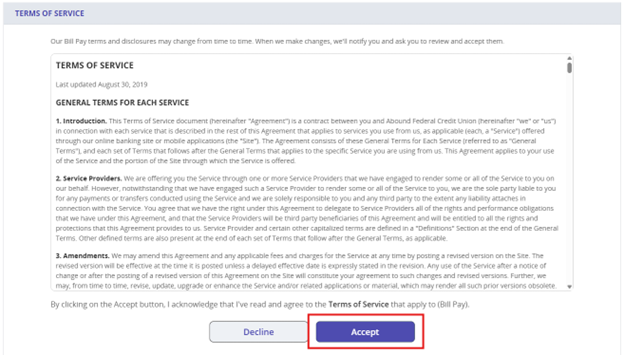
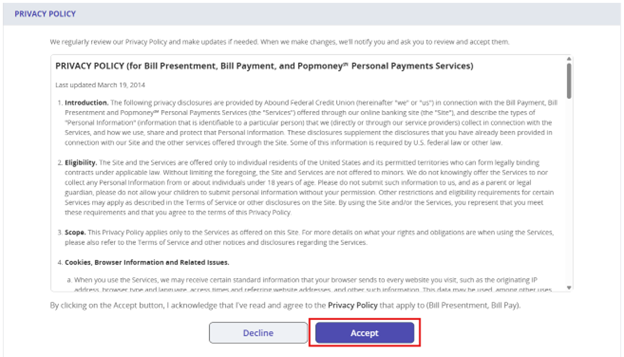
3. After accepting, you'll be taken to a new screen. Select Get started to continue to the Bill Pay home page.
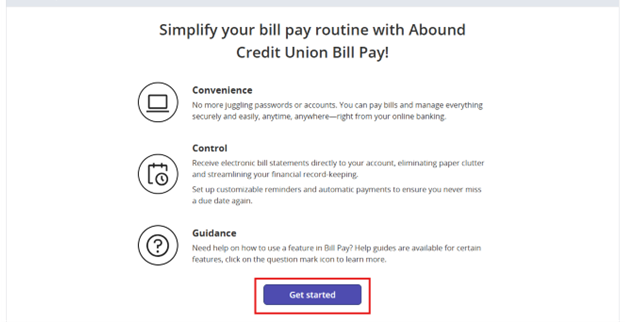
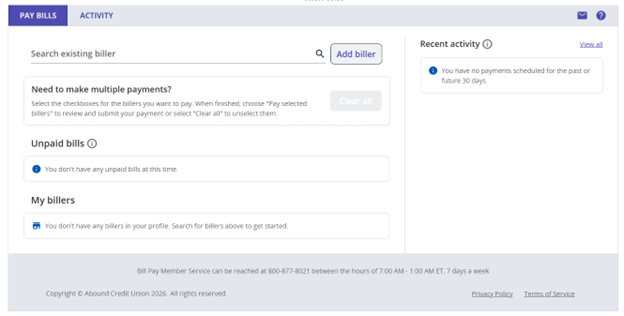
4. You're now enrolled and can manage your bills easily.
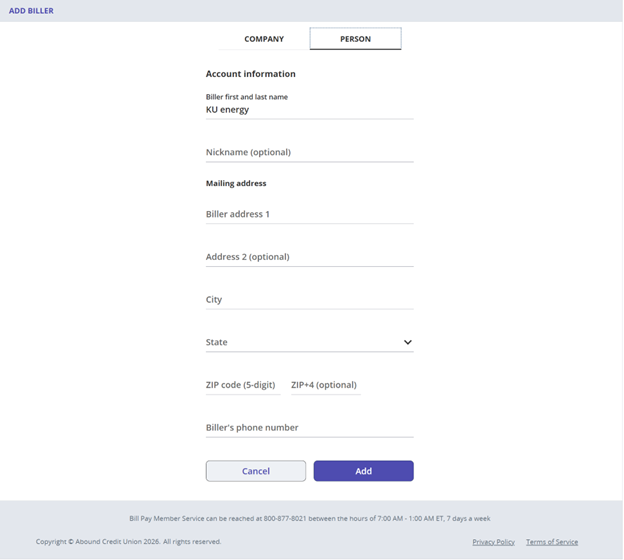
Add a biller in Bill Pay
1. Select Add Biller
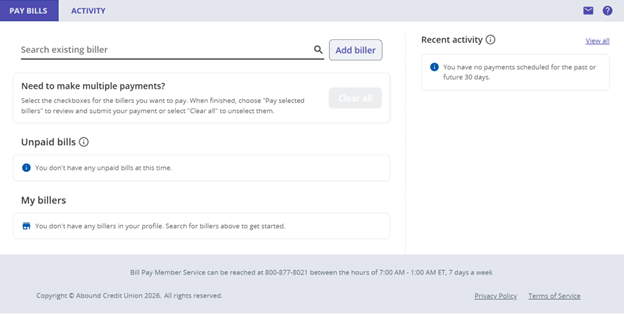
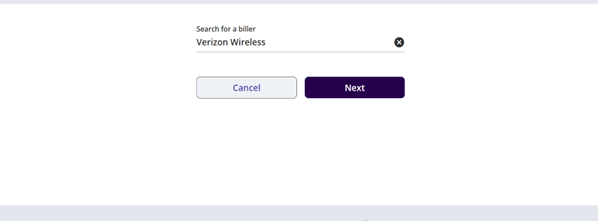
2. Search for a biller using the search bar.
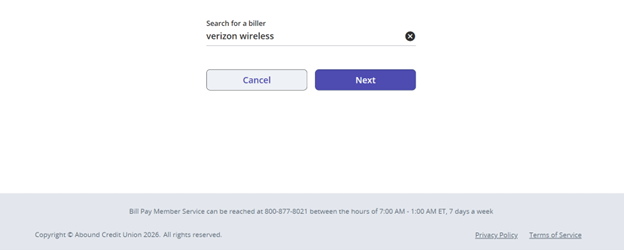
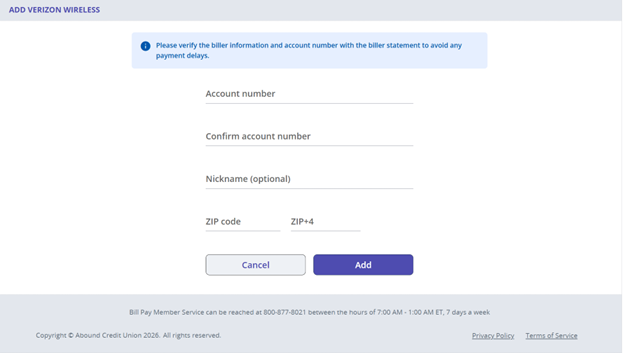
3. If the biller appears in the search results, select their name and click Next.
4. Fill out the required information. Click Add when finished.
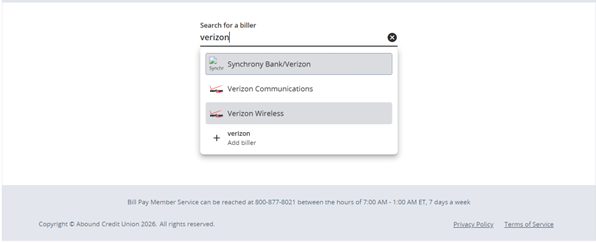
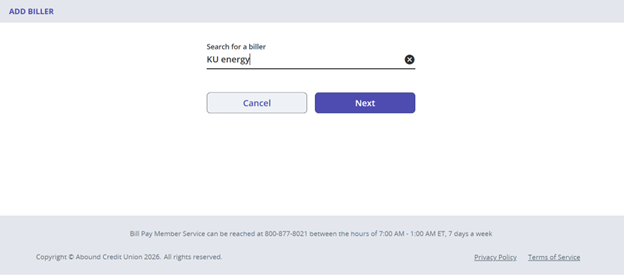
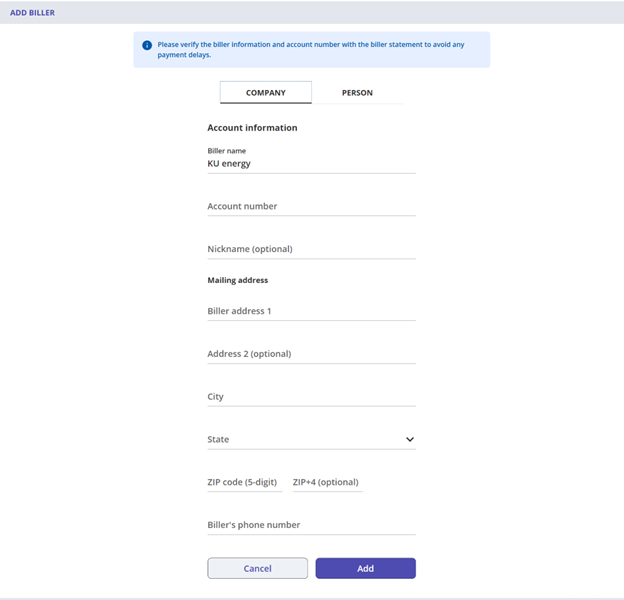
5. If the biller does not appear, click Next.
6. Fill out the biller's required information.
Abound Credit Union is a full-service financial institution with locations throughout central and southern Kentucky.

We help you finance your dream car through a low rate and flexible term loan.

Have Questions?
We help you find answers.
*Carrier rates may apply for data usage.
¹Apple, the Apple logo, iPhone and iPad are trademarks of Apple Inc., registered in the U.S. and other countries. Apple Pay®, Face ID, and Touch ID are trademarks of Apple Inc. Google PayTM is a registered trademark of Google LLC. Samsung Pay® is a registered trademark of Samsung Electronics Co., Ltd. Mobile carrier charges may apply.
